

How to Duplicate Pages in WordPress by Plugin: A Simplified Guide
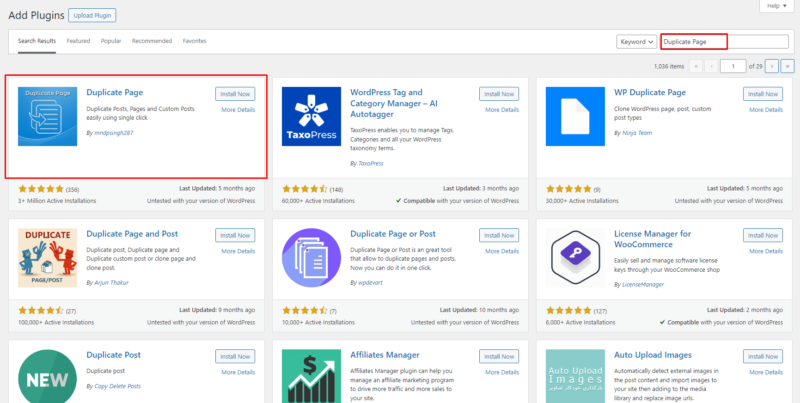
The plugin I use for this on client sites is Duplicate Page by mndpsingh287 — free, actively maintained (currently on v4.5.9), and it does one thing well instead of bundling a dozen features you won’t use.
Install and activate
From your dashboard: Plugins → Add New, search “Duplicate Page,” install, activate. No configuration is required to get the basic clone action working.
Clone a page or post
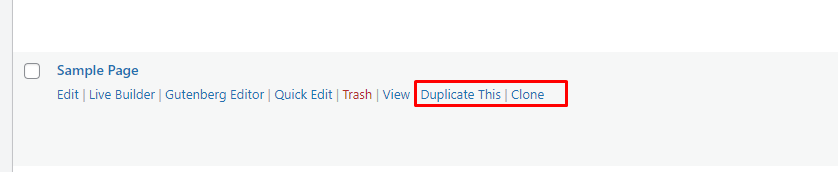
Go to Pages (or Posts), hover over the item you want to copy, and click Duplicate This in the row actions. The plugin creates the copy instantly and drops it into the list as a draft titled “[Original Title] Copy” — it does not publish the duplicate automatically.
Settings worth checking
Under Settings → Duplicate Page you can control: which user roles are allowed to duplicate, which post types the clone action appears on, where the duplicate link shows up, the default status of the new copy (draft/private/pending/public), a title prefix or suffix instead of the default “Copy” suffix, and whether you’re redirected straight to the new draft’s editor after cloning. On a client site I usually restrict the capability to admins/editors and leave the default status on draft — there’s no good reason to let a clone go live automatically.
If you’re using a page builder
Page builders (Elementor, Fusion Builder/Avada, Divi) store their layout as serialized or JSON data in postmeta, not in the standard post content field, which has historically been a weak point for duplication plugins. The v4.5.9 changelog for this plugin specifically calls out a fix for “page builder layout not preserved after duplication” and related meta-data corruption — worth confirming you’re on 4.5.9 or later if you’re duplicating a page built with Fusion Builder, since older versions could produce a copy with content intact but the builder layout broken.
For WooCommerce products specifically, don’t use this plugin at all — WooCommerce ships its own “Duplicate” row action for products, which correctly copies product-specific data (variations, attributes, stock settings). Using a generic page-duplication plugin on a product can miss WooCommerce-specific postmeta.
Before you publish the duplicate
Since the clone starts as a draft, treat it as a checklist, not a formality: change the title, permalink, and SEO title/description (Rank Math will otherwise carry over the original’s metadata verbatim, which means two pages competing for the same focus keyword). Check that featured image, any ACF fields, reusable blocks, and builder-specific global elements (headers/footers assigned in Avada) came through correctly — and re-check on mobile before launch. Keep the original as the canonical version unless the duplicate serves a genuinely distinct purpose; publishing near-identical pages at different URLs just to target keyword variations will work against you in search, not for you.





[…] How to Duplicate Pages in WordPress by Plugin: A Simplified Guide […]